
In systems administration, security is always the first priority — and blocking IP access to a server is one of the most effective ways to guard against external threats. This article explains how IP blocking works, the ways it can be implemented, and the practical benefits of using it, so you can strengthen your system's protection at the network layer.
Why block IPs from accessing the server?
Here are some common reasons an administrator might consider blocking IP addresses:
• Save bandwidth and stop bots and spam: automated bots and spammers can overload systems and consume significant bandwidth. Blocking IPs from these sources optimizes performance and keeps the user experience smooth.
• Blocking malicious content and dangerous links: many bots leave comments containing malware or phishing links. Such content is not merely useless — it carries a serious security risk.
• Preventing intrusion and blocking attackers: when the system records unusual behavior — repeated failed logins, vulnerability scanning — identifying and blocking the suspicious IP can stop an attack early.
A solution for Windows Server systems
Nếu bạn đang vận hành server chạy hệ điều hành Windows và phải đối mặt với các hình thức tấn công phổ biến như DDoS, brute-force password hay truy cập trái phép từ các quốc gia cụ thể, thì việc chặn IP theo quốc gia là một biện pháp mạnh mẽ. Trong bài viết này, bạn sẽ được hướng dẫn chi tiết cách thiết lập cơ chế chặn hàng loạt IP — giúp giảm thiểu nguy cơ và duy trì tính ổn định cho hệ thống.
ne small note: the IP ranges are taken from http://www.ipdeny.com, so they will not cover every IP address in the country you choose. Some ranges will be missing, and you can check and add them later.
To block a country's IP addresses, follow these steps:
Step 1: Download the script file below.
https://github.com/cloudcraftteam/Import-firewall-blocklist
Step 2: Extract the downloaded file into a folder of your choice.
Trong bài hướng dẫn của Bizfly Cloud, the script file is extracted into the Download folder on drive C.
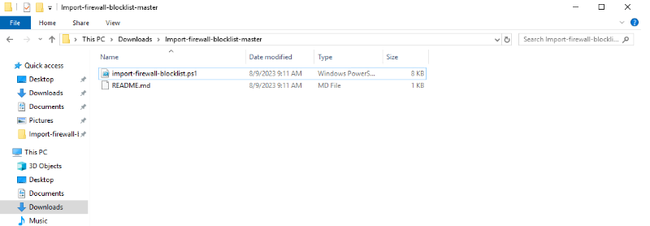
Step 3: open Windows PowerShell in that folder by typing powershell in the Explorer address bar and pressing Enter.

Step 4: Enter the following command to set the policy that allows scripts to run.
PowerShell.exe -ExecutionPolicy Bypass
Step 5: Run the script to block the country you want
.\Import-Firewall-Blocklist.ps1 -zone SG
(runs the script, where SG is the two-letter country code; see:http://www.worldatlas.com/aatlas/ctycodes.htm)
Run the command and substitute the country code for the country you want to block
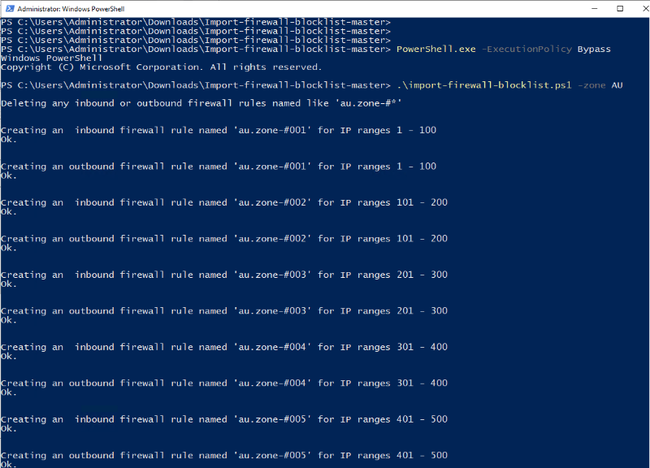
Once the command finishes, you will see a file named after your country code appear in the script folder.
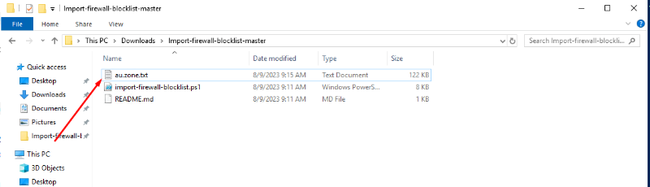
Check the firewall; if you can see the blocking rule, you are done.
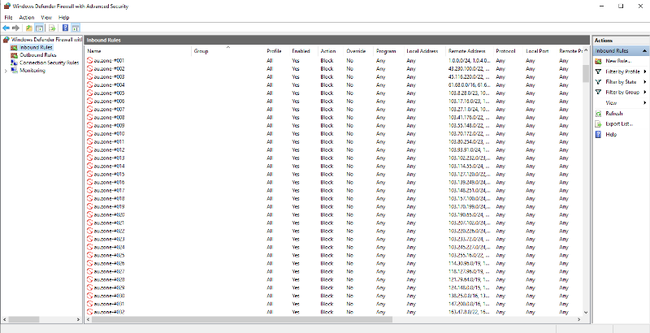
Step 6: To delete the IP block rule you created, run the following command:
.\Import-Firewall-Blocklist.ps1 -zone CN -deleteonly

Reconfigure the policy
PowerShell.exe -ExecutionPolicy Restricted
Blocking IPs on HiTechCloud and Pho Tue SoftWare Solutions JSC is a simple but necessary process for maintaining server performance. With the guide above, you can carry out this task confidently and without difficulty. If you have further questions or need support, leave a comment below this article!